

User Roles in Qwairy
There are four types of roles, ordered from highest to lowest privilege: Owner > Manager > Member > Viewer.| Role | Permissions |
|---|---|
| Owner | Full access including ownership transfer. The owner cannot be removed. |
| Manager | Full access to everything, including billing, adding brands, team settings, and viewer management |
| Member | Can do everything except view or manage billing |
| Viewer | Read-only access to assigned brands only — cannot make changes or add brands |
Virtual Teams administration (creating sub-teams, transferring workspaces between teams, allocating or reclaiming credits, and adjusting a sub-team’s workspace quota) is available to Owners and Managers. Members and Viewers cannot perform these actions.
How to Add a Team Member
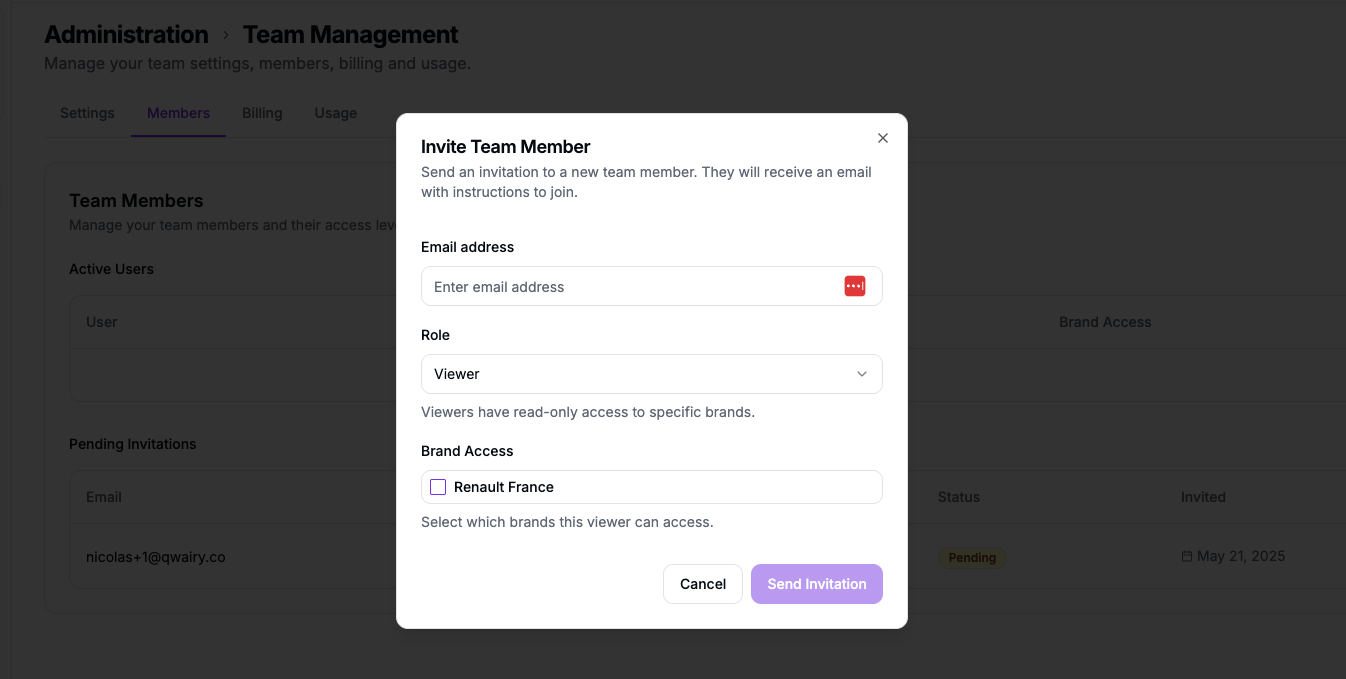
- Go to Team Management > Members (https://www.qwairy.co/dashboard/team/members)
- Click the “Add Member” button
- Enter the email address of the teammate
- Choose a role: Manager, Member, or Viewer
- Select the brand access for that user (Viewer can access specific brands only)
- Click Send Invitation
Viewers need to be assigned brand access manually.
Managing Brand Access
- After inviting a member, you can edit brand access at any time by clicking the
...menu next to their name. - This is useful for agencies managing multiple clients/brands.
Pending Invitations
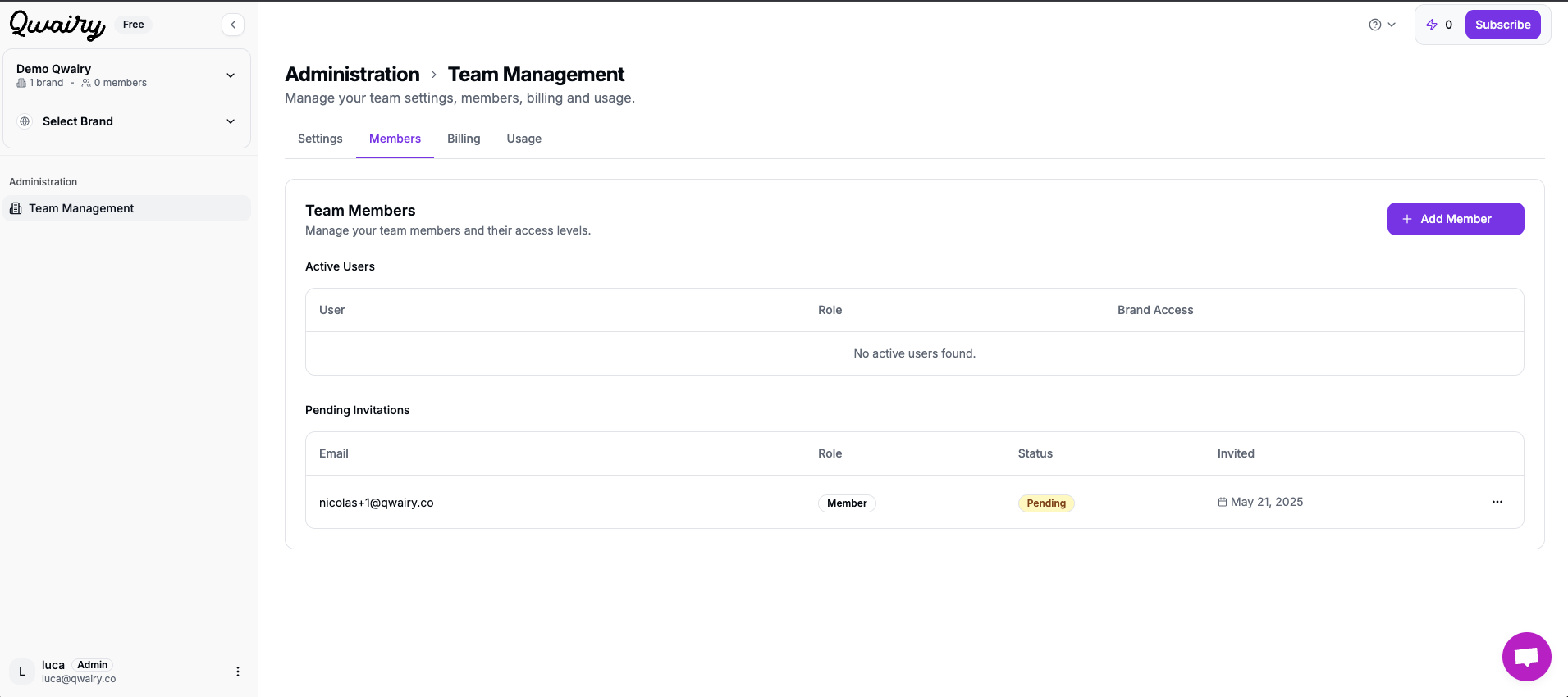
- All sent invitations appear under the Pending Invitations list
- You can resend or revoke an invitation if needed