


Quick Start
- Create an API token above (New Token)
- Open Looker Studio
- Add the Qwairy connector
- Enter your API token
- Choose your data source and start visualizing
Common Questions
Issue: Unable to complete authorization when creating a Looker Studio data source with the Qwairy connector
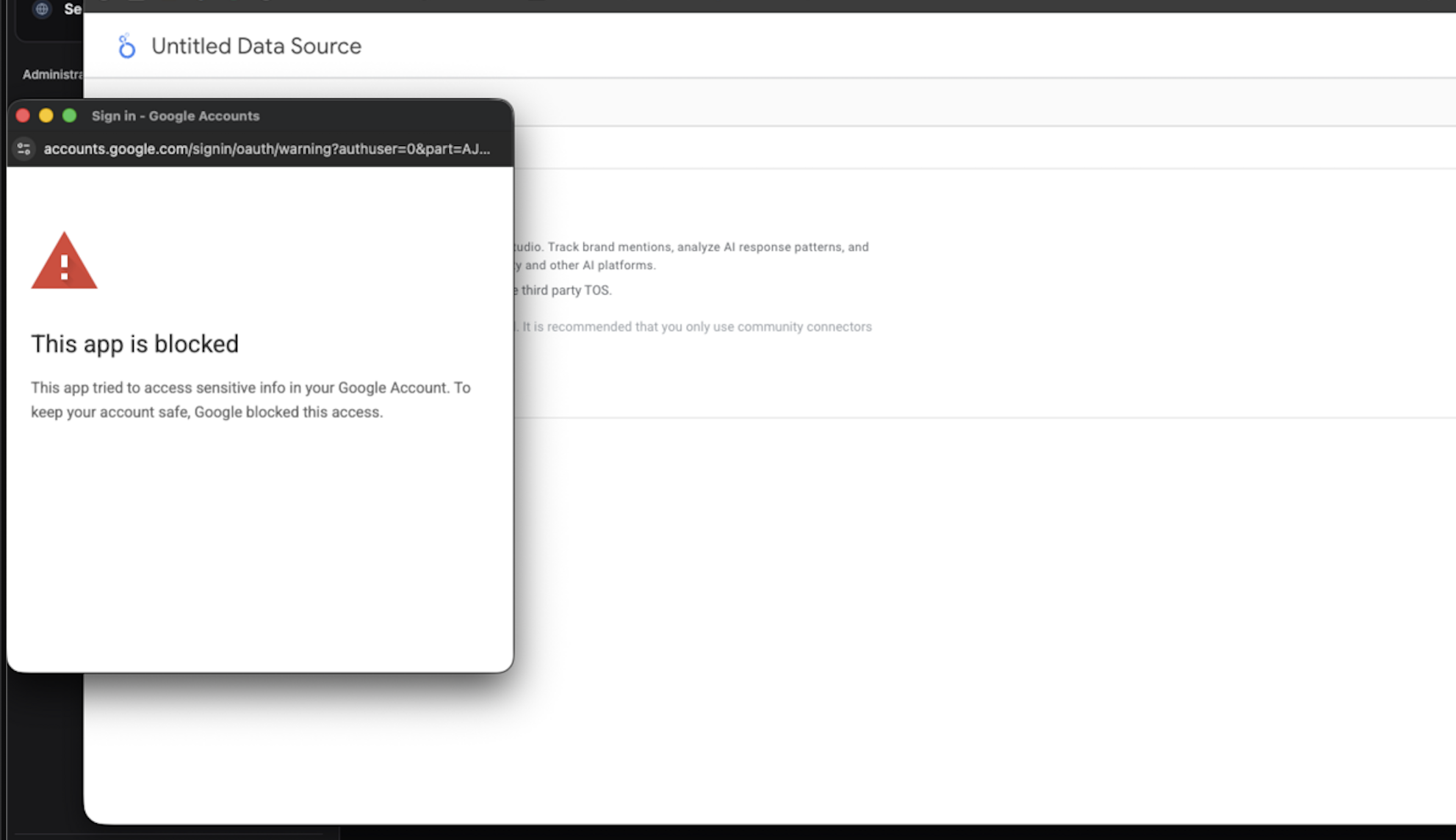
When attempting to create a Google Looker Studio (Data Studio) report using the Qwairy connector, the authorization step is blocked.A Google warning message appears stating that “This app is blocked”, with no option to proceed.
Cause
This type of blocking (with no “continue” option) indicates that third-party application access is restricted at the Google Workspace organization level.The restriction is enforced by your company’s Google Workspace security policies, not by Qwairy or Looker Studio.
Resolution
To resolve this issue, you must contact your Google Workspace administrator and ask them to allow the Qwairy connector. The administrator needs to follow these steps:- Open Google Admin Console
- Go to Security
- Select API Controls
- Click Manage Third-Party App Access
- Allow access for the Qwairy connector