> ## Documentation Index
> Fetch the complete documentation index at: https://docs.qwairy.co/llms.txt
> Use this file to discover all available pages before exploring further.
# Troubleshooting & FAQ
> Common issues, limitations, and API reference for the Looker Studio connector
## Date Filtering
All data sources support Looker Studio's native date range controls. Add a **Date Range Control** to your dashboard to filter data dynamically.
If no date range is specified, data defaults to the last 90 days.
***
## Row Limits
Each data source returns a maximum of **10,000 rows** per request. For larger datasets, use date range filtering to segment your analysis.
***
## Common Issues
### Unable to complete authorization
When the authorization step shows "This app is blocked" with no option to proceed:
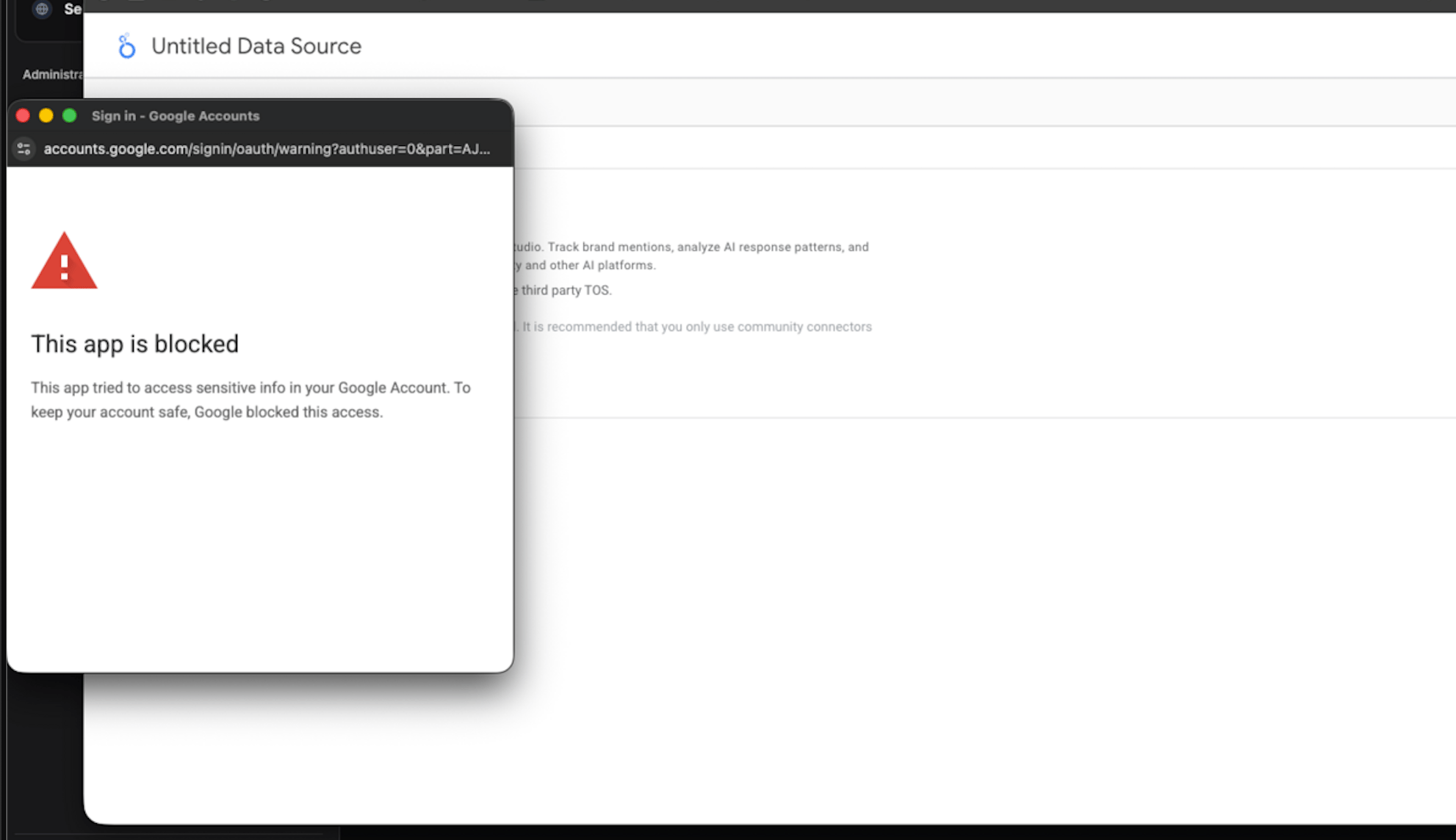 **Cause:** Your organization's Google Workspace security policies block third-party connectors.
**Solution:** Contact your Google Workspace administrator to allow the Qwairy connector:
1. Open **Google Admin Console**
2. Go to **Security** → **API Controls**
3. Click **Manage Third-Party App Access**
4. Allow access for the **Qwairy connector**
***
### No data appearing in reports
1. Verify your API token is valid in Team Management
2. Ensure the selected brand has monitoring data
3. Check that the date range includes dates with data
4. Confirm your team subscription is active
***
### How to refresh data
Looker Studio caches data for performance. To refresh:
* Click the **Refresh data** button in your report
* Or set up automatic refresh in your data source settings
***
### New fields do not appear after a connector update
When Qwairy adds or changes connector fields, existing Looker Studio data
sources keep their previous schema until you refresh it manually:
1. Open your report in edit mode
2. Go to **Resource → Manage added data sources**
3. Click **Edit** on the Qwairy data source
4. Click **Refresh fields**
5. Confirm the field changes
Refresh fields after connector updates that add metrics such as `coverage`,
`responseCoverage`, `competitorId`, `brandMentionedLabel`,
`totalBrandMentions`, or `ownBrandMentions`.
***
### Numbers in Looker do not match the Qwairy interface
On **Performance Overview** and **Topic Performance**, ratio metrics are
calculated from raw counters in Looker Studio:
`SUM(numerator) / SUM(denominator)`. This avoids averaging provider rows and
keeps totals aligned with the Qwairy interface. If your dashboard still shows
older numbers, refresh the schema:
**Resource → Manage added data sources → Refresh fields**.
On **Competitor Metrics**, rows are grouped by `competitorId` and aggregated
across all providers/models. The `provider` and `model` dimensions remain
available for compatibility, but their values are `All Providers` and
`All Models`.
For source reports, use `isCompetitor`, `relationship`, `competitorId`, or
`competitor` for synchronized filters across **Source Domains** and
**Source URLs**.
***
### "Mentioned in period" vs "Total tracked" competitors
Competitor Metrics rows only include competitors mentioned in the selected
period. `totalTrackedCompetitors` returns the brand-level registered count
(constant, ignores filters). Combine them for a coverage ratio:
```
COUNT_DISTINCT(competitor) / MAX(totalTrackedCompetitors)
```
**Cause:** Your organization's Google Workspace security policies block third-party connectors.
**Solution:** Contact your Google Workspace administrator to allow the Qwairy connector:
1. Open **Google Admin Console**
2. Go to **Security** → **API Controls**
3. Click **Manage Third-Party App Access**
4. Allow access for the **Qwairy connector**
***
### No data appearing in reports
1. Verify your API token is valid in Team Management
2. Ensure the selected brand has monitoring data
3. Check that the date range includes dates with data
4. Confirm your team subscription is active
***
### How to refresh data
Looker Studio caches data for performance. To refresh:
* Click the **Refresh data** button in your report
* Or set up automatic refresh in your data source settings
***
### New fields do not appear after a connector update
When Qwairy adds or changes connector fields, existing Looker Studio data
sources keep their previous schema until you refresh it manually:
1. Open your report in edit mode
2. Go to **Resource → Manage added data sources**
3. Click **Edit** on the Qwairy data source
4. Click **Refresh fields**
5. Confirm the field changes
Refresh fields after connector updates that add metrics such as `coverage`,
`responseCoverage`, `competitorId`, `brandMentionedLabel`,
`totalBrandMentions`, or `ownBrandMentions`.
***
### Numbers in Looker do not match the Qwairy interface
On **Performance Overview** and **Topic Performance**, ratio metrics are
calculated from raw counters in Looker Studio:
`SUM(numerator) / SUM(denominator)`. This avoids averaging provider rows and
keeps totals aligned with the Qwairy interface. If your dashboard still shows
older numbers, refresh the schema:
**Resource → Manage added data sources → Refresh fields**.
On **Competitor Metrics**, rows are grouped by `competitorId` and aggregated
across all providers/models. The `provider` and `model` dimensions remain
available for compatibility, but their values are `All Providers` and
`All Models`.
For source reports, use `isCompetitor`, `relationship`, `competitorId`, or
`competitor` for synchronized filters across **Source Domains** and
**Source URLs**.
***
### "Mentioned in period" vs "Total tracked" competitors
Competitor Metrics rows only include competitors mentioned in the selected
period. `totalTrackedCompetitors` returns the brand-level registered count
(constant, ignores filters). Combine them for a coverage ratio:
```
COUNT_DISTINCT(competitor) / MAX(totalTrackedCompetitors)
```