> ## Documentation Index
> Fetch the complete documentation index at: https://docs.qwairy.co/llms.txt
> Use this file to discover all available pages before exploring further.
# Add a Brand
> Set up and configure your brand in the workspace
## How to add a Brand on Qwairy?
### Step-by-Step Guide
#### 1. Open the Brand Selector
At the top-left of your dashboard, click the dropdown under your workspace name (e.g. **Acme Inc**).
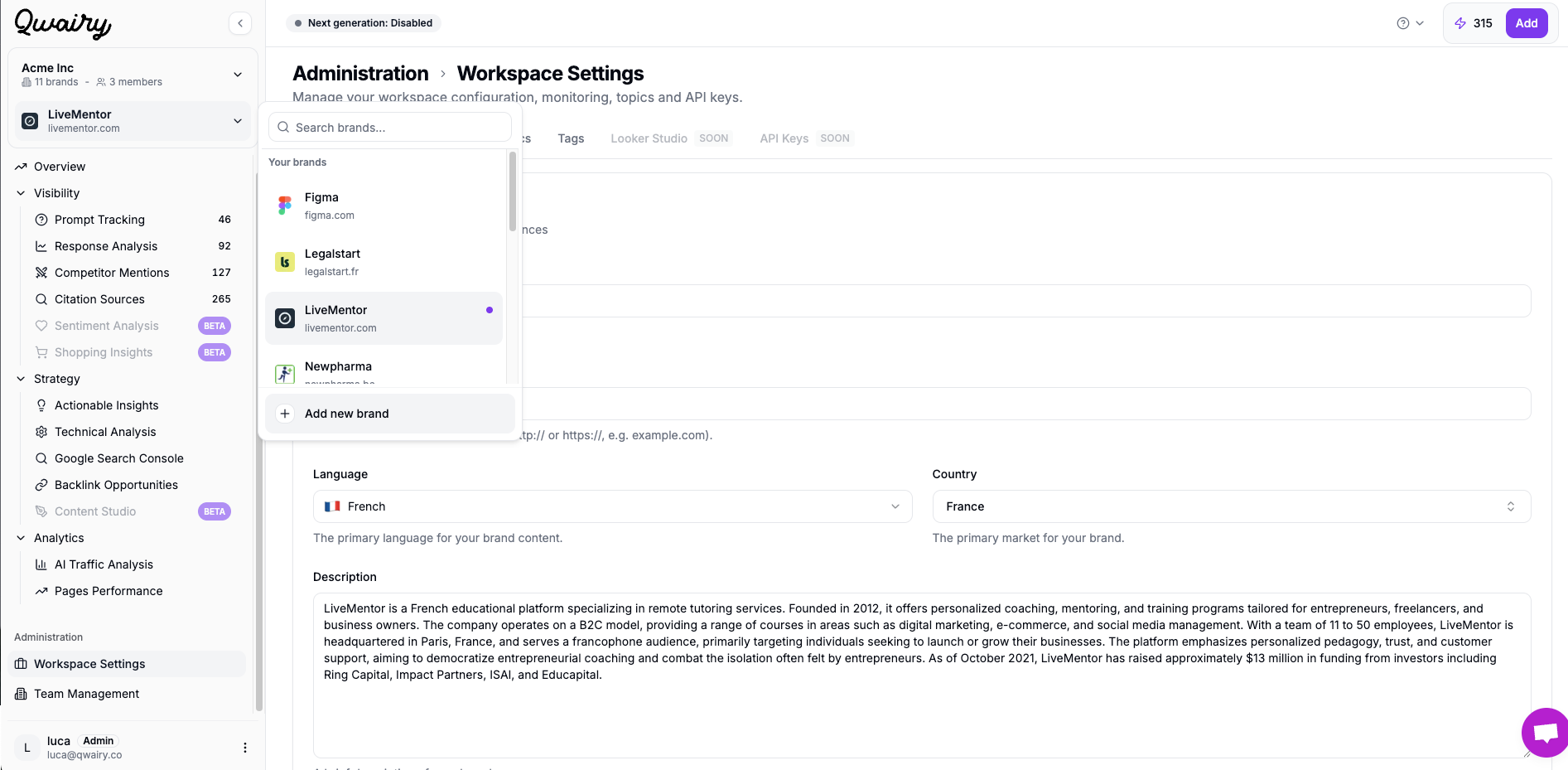 #### 2. Click “➕ Add new brand”
At the bottom of the dropdown list, you’ll see an **“Add new brand”** button. Click it to begin setup.
### What happens next?
You will start your brand onboarding on Qwairy. You can read [this page to understand how to do your onboarding. ](https://docs.qwairy.co/documentation/get-started/introduction)
You can switch between brands anytime from the dropdown menu.
#### 2. Click “➕ Add new brand”
At the bottom of the dropdown list, you’ll see an **“Add new brand”** button. Click it to begin setup.
### What happens next?
You will start your brand onboarding on Qwairy. You can read [this page to understand how to do your onboarding. ](https://docs.qwairy.co/documentation/get-started/introduction)
You can switch between brands anytime from the dropdown menu.