> ## Documentation Index
> Fetch the complete documentation index at: https://docs.qwairy.co/llms.txt
> Use this file to discover all available pages before exploring further.
# Prompt Tracking
> Monitor and track search prompts related to your brand
## 🔍 Part 1 – Overview of the Prompts Tab
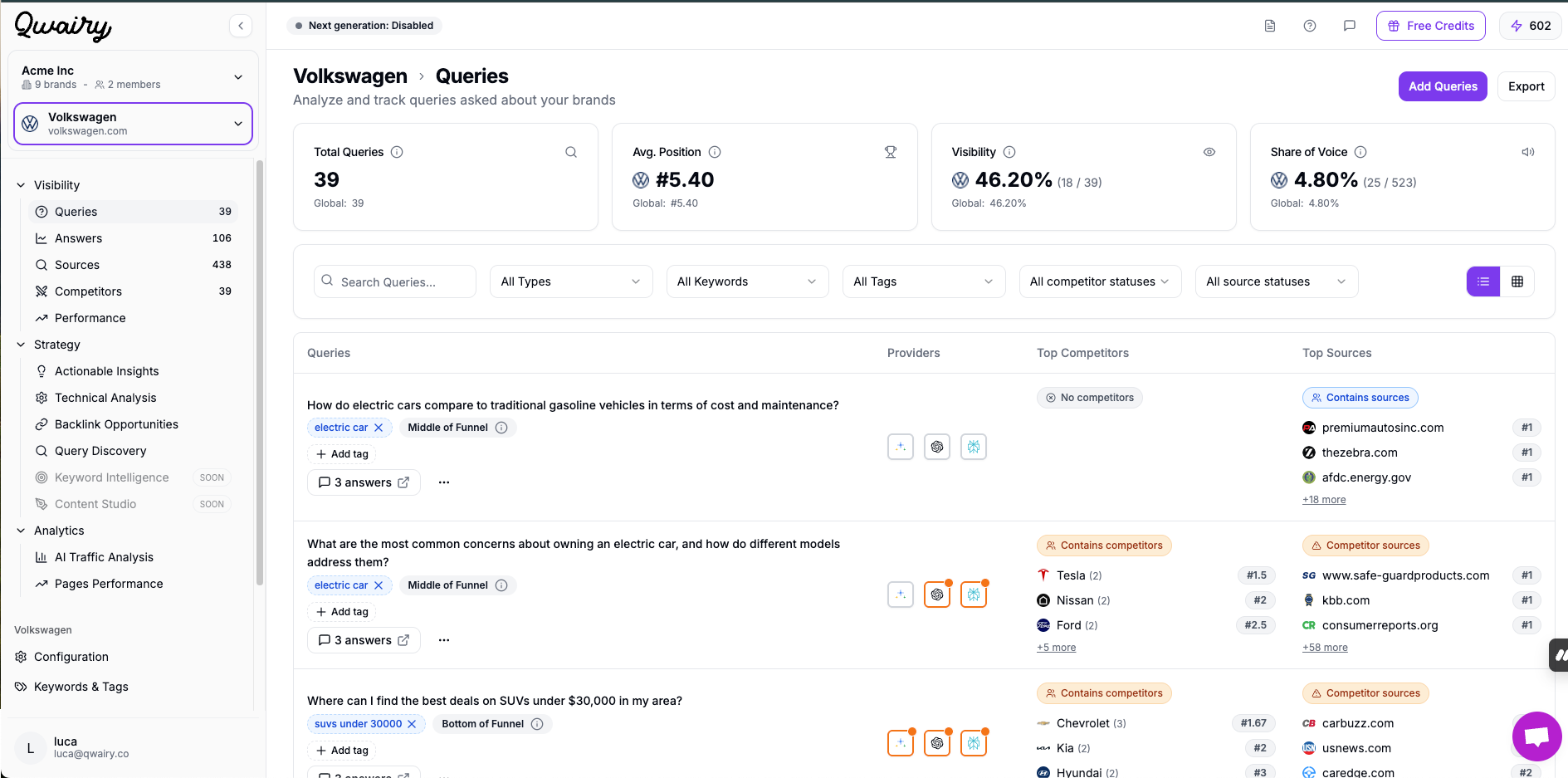
The **Prompts** section in Qwairy lets you analyze and monitor the key questions users are asking about your brand across various platforms and AI providers.
This view helps you understand:
* **What topics are associated with your brand**
* **How visible your brand is across relevant prompts**
* **Which competitors are also being mentioned**
* **Which AI providers surface your brand in their answers**
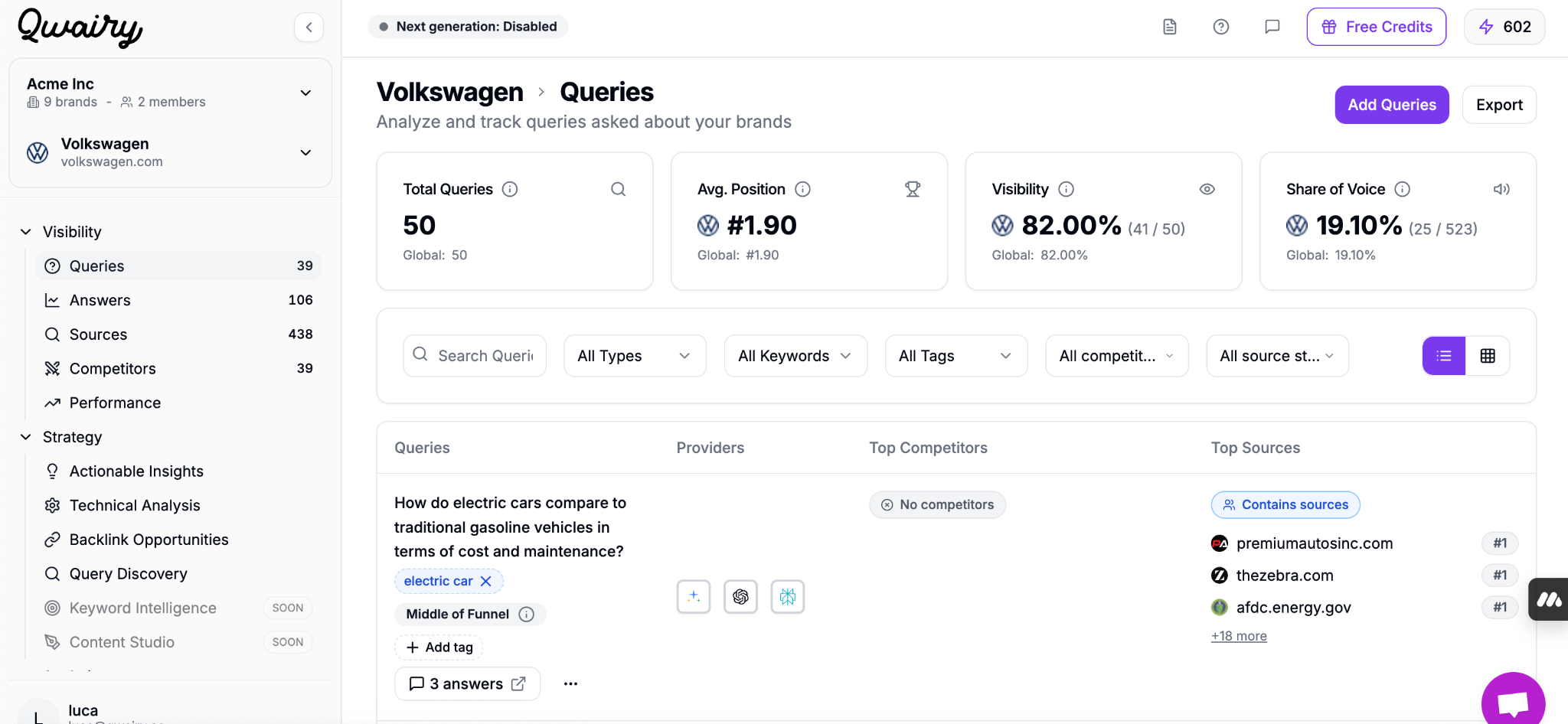
At the top of the page, you'll find four essential metrics:
* **Total Prompts**\
The number of tracked prompts that mention or relate to your brand.
> *Example: 50 prompts currently tracked for Volkswagen.*
* **Average Position**\
Your average ranking across all prompts where your brand appears.
> *Example: Volkswagen has an average position of #5.40.*
* **Visibility**\
The percentage of prompts in which your brand is mentioned at least once.
> *Example: 82% visibility means your brand is visible in 41 out of 50 prompts.*
* **Share of Voice**\
Out of all brand mentions in AI responses (yours and your competitors'), the percentage that are yours.
> *Example: Volkswagen has a 4.80% share of voice across 523 total brand mentions.*
These KPIs give you a high-level view of your brand's presence and performance in real search-like or AI-generated prompts.
### ➕ How to Add Prompts
You can add prompts in two ways:
1. **Manually**, using the "Add Prompts" button in the top right corner of the interface.
2. **Automatically**, by completing the onboarding flow, which suggests initial prompts based on your brand and industry.
## 🧭 Part 2 – Navigating the Prompt Table
The core of the **Prompts** tab is a detailed table showing every prompt you're tracking. Each row corresponds to a unique user question and includes rich context to help you evaluate brand performance and competitive landscape.
### 🔠 Columns in the Prompt Table
Each prompt includes the following key elements:
* **Prompt Text**\
The actual question asked (e.g., *"How do electric cars compare to traditional gasoline vehicles in terms of cost and maintenance?"*)
* **Tags & Funnel Stage**\
You can assign **tags** to organize prompts by theme (e.g., *electric car*, *suvs under 30000*) and label them by **funnel stage** (Top / Middle / Bottom of Funnel).
> Helps you understand where in the customer journey the prompt belongs.
* **AI Providers**\
Icons indicate which AI models are answering the prompt:
* ✦ AI Overview
* 🔵 OpenAI
* 🟠 Anthropic
* 🧊 Perplexity
* 🌠 Google Generative AI
* **Top Competitors Mentioned**\
This shows which **competitor brands** were mentioned in responses to this prompt. You'll also see how many times each was mentioned.
> *Example: Tesla, Nissan, and Ford appear in a prompt about electric car concerns.*
* **Top Sources**\
The most influential sources that were cited across providers when answering this prompt. You can view their rank, domain, and how often they were used.
* **Response Count**\
The number of total responses across providers that responded to this prompt (e.g., "3 responses").
## 🔍 Part 3 – Filters & Prompt Exploration
To help you dig into the most relevant insights, the Prompts interface includes a powerful set of filters.
### 🧩 Available Filters
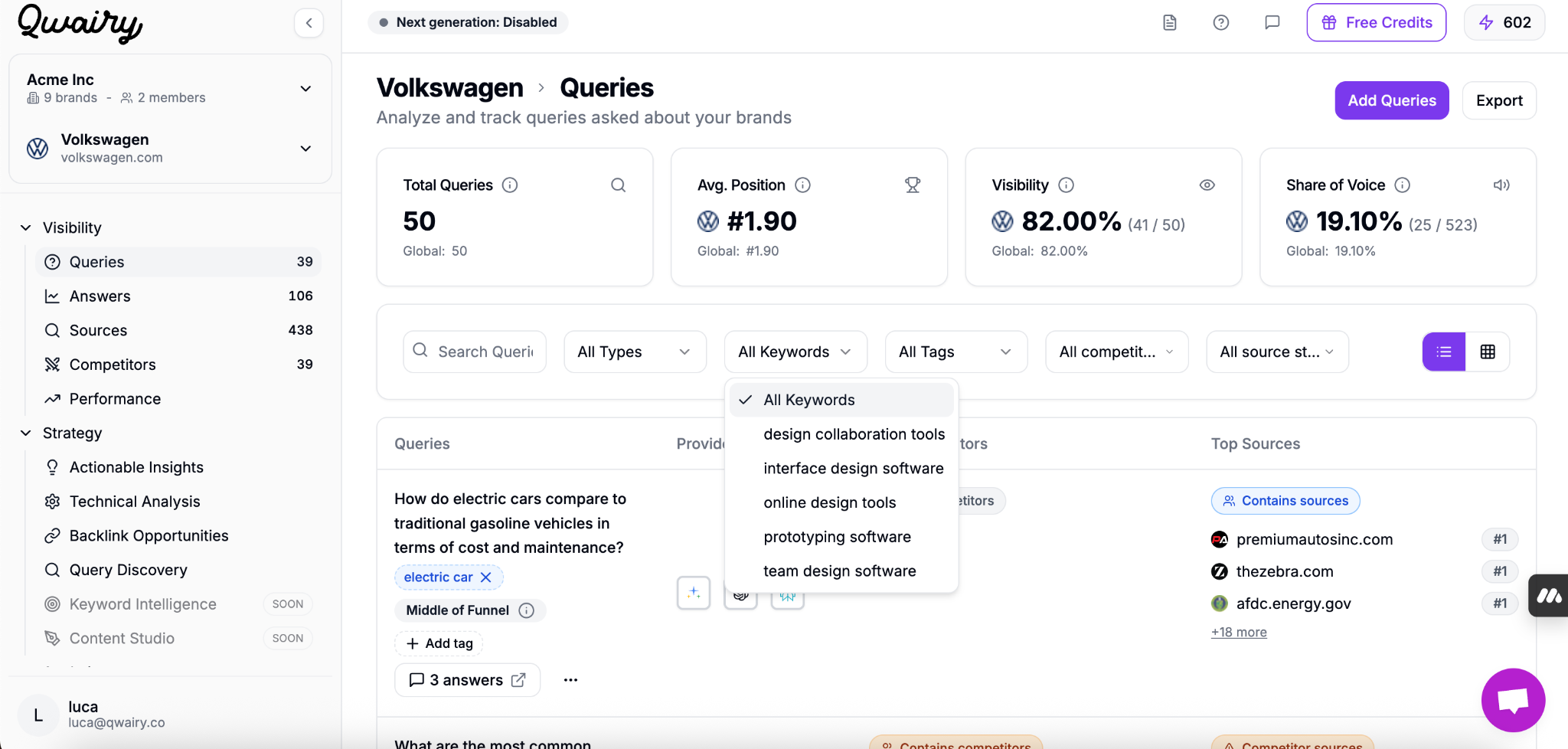
You can refine your view using the following options:
* **Search Bar**\
Quickly locate specific prompts by typing part of the question text.
* **Prompt Type (Funnel Stage)**\
Filter by where the prompt falls in the user journey:
* Top of Funnel (awareness-based prompts)
* Middle of Funnel (comparison or consideration)
* Bottom of Funnel (purchase-intent or pricing)
* **Topics**\
Only view prompts related to specific topics. Helpful to zoom in on core product topics (e.g., *"electric car"*, *"design software"*).
* **Tags**\
Filter by tags that your team has applied to prompts manually — for example: *Sustainability*, *EV Market*, *Luxury*, *Under 30k*, etc.
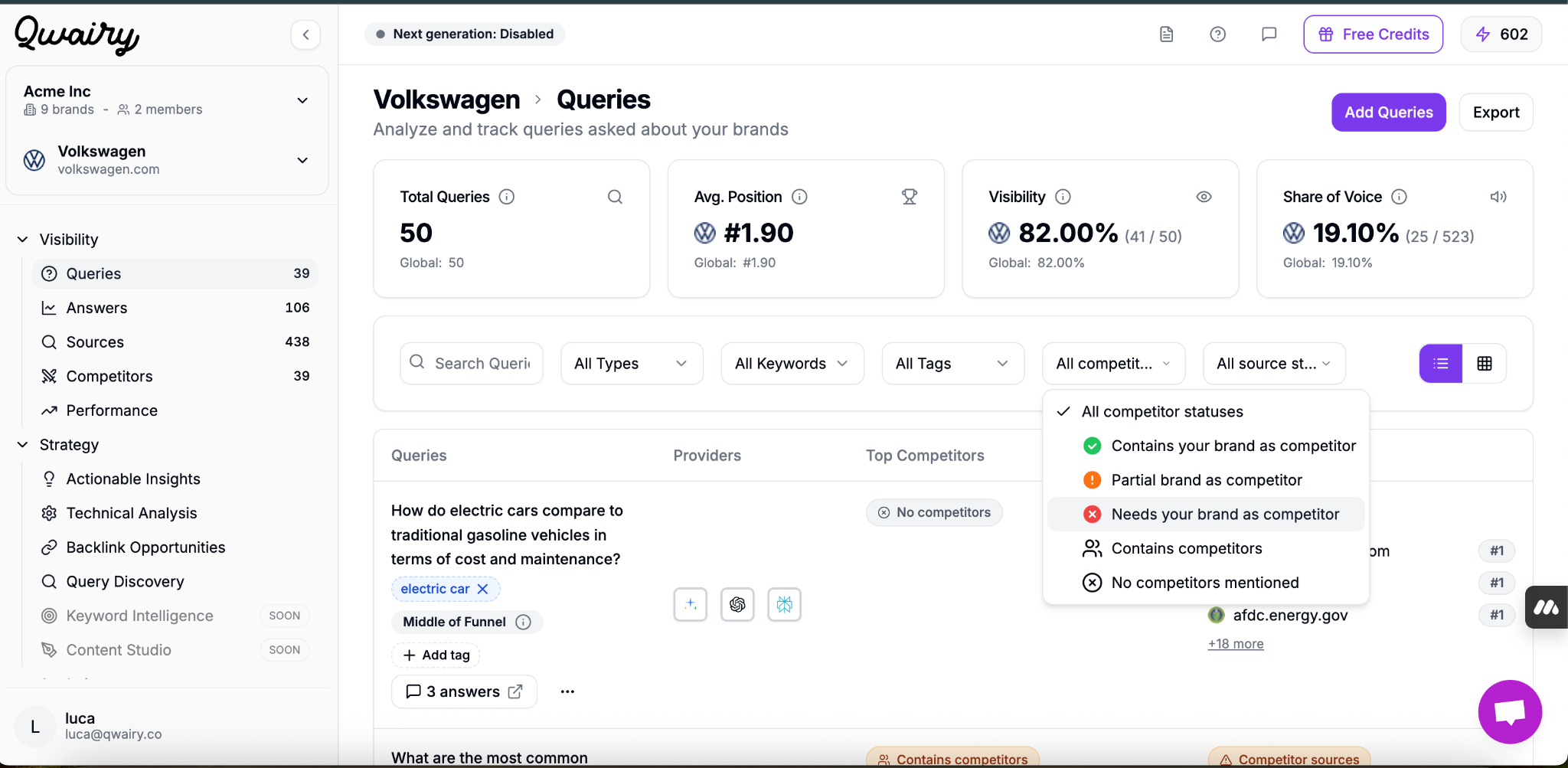
* **Competitor Mentions**
\
Segment prompts based on whether and how competitors are present:
* ✅ Mentions your brand
* ⚠️ Mentions your brand partially
* ❌ Needs your brand as a competitor
* 🔁 Mentions other competitors
* 🚫 No competitors mentioned
* **Source Status**\
See if the prompt is backed by strong content sources or not — a helpful signal to identify where you might need to improve credibility.
## ⚙️ Part 4 – Managing Prompts
Qwairy gives you full control over your prompt set so you can continuously adapt to your brand strategy, audience questions, and AI visibility goals.
### ➕ Add New Prompts
To add prompts manually:
1. Click the **"Add Prompts"** button in the top-right corner of the Prompts tab.
2. Enter one or more natural-language prompts (e.g., *"Is Volkswagen a good electric car brand?"*).
3. Assign optional tags and funnel stages.
4. Select which AI providers you want Qwairy to analyze the prompt with.
> 💡 You can add as many prompts as needed — whether they're general questions or highly targeted use cases.
### 🗂 Organize with Tags
Use **custom tags** to group prompts by:
* Business priority
* Product line
* Campaign
* Language or geography
* Funnel stage or content theme
Tags are displayed directly in the table and can be used as filters.
### 🗑 Delete Prompts
To clean up your prompt list:
* Click the **three-dot menu (⋯)** next to a prompt
* Select **"Delete"** to permanently remove it
Deleting a prompt removes all associated responses and analytics. This action cannot be undone.
## Related use cases
* [Am I monitoring the right prompts to track my AI visibility?](/use-cases/setup/monitoring-right-prompts)
* [How should I organize my prompts with tags, topics, and funnel stages?](/use-cases/setup/organize-prompts-tags-topics)
 This view helps you understand:
* **What topics are associated with your brand**
* **How visible your brand is across relevant prompts**
* **Which competitors are also being mentioned**
* **Which AI providers surface your brand in their answers**
At the top of the page, you'll find four essential metrics:
* **Total Prompts**\
The number of tracked prompts that mention or relate to your brand.
> *Example: 50 prompts currently tracked for Volkswagen.*
This view helps you understand:
* **What topics are associated with your brand**
* **How visible your brand is across relevant prompts**
* **Which competitors are also being mentioned**
* **Which AI providers surface your brand in their answers**
At the top of the page, you'll find four essential metrics:
* **Total Prompts**\
The number of tracked prompts that mention or relate to your brand.
> *Example: 50 prompts currently tracked for Volkswagen.*
 * **Average Position**\
Your average ranking across all prompts where your brand appears.
> *Example: Volkswagen has an average position of #5.40.*
* **Visibility**\
The percentage of prompts in which your brand is mentioned at least once.
> *Example: 82% visibility means your brand is visible in 41 out of 50 prompts.*
* **Share of Voice**\
Out of all brand mentions in AI responses (yours and your competitors'), the percentage that are yours.
> *Example: Volkswagen has a 4.80% share of voice across 523 total brand mentions.*
These KPIs give you a high-level view of your brand's presence and performance in real search-like or AI-generated prompts.
### ➕ How to Add Prompts
You can add prompts in two ways:
1. **Manually**, using the "Add Prompts" button in the top right corner of the interface.
2. **Automatically**, by completing the onboarding flow, which suggests initial prompts based on your brand and industry.
## 🧭 Part 2 – Navigating the Prompt Table
The core of the **Prompts** tab is a detailed table showing every prompt you're tracking. Each row corresponds to a unique user question and includes rich context to help you evaluate brand performance and competitive landscape.
* **Average Position**\
Your average ranking across all prompts where your brand appears.
> *Example: Volkswagen has an average position of #5.40.*
* **Visibility**\
The percentage of prompts in which your brand is mentioned at least once.
> *Example: 82% visibility means your brand is visible in 41 out of 50 prompts.*
* **Share of Voice**\
Out of all brand mentions in AI responses (yours and your competitors'), the percentage that are yours.
> *Example: Volkswagen has a 4.80% share of voice across 523 total brand mentions.*
These KPIs give you a high-level view of your brand's presence and performance in real search-like or AI-generated prompts.
### ➕ How to Add Prompts
You can add prompts in two ways:
1. **Manually**, using the "Add Prompts" button in the top right corner of the interface.
2. **Automatically**, by completing the onboarding flow, which suggests initial prompts based on your brand and industry.
## 🧭 Part 2 – Navigating the Prompt Table
The core of the **Prompts** tab is a detailed table showing every prompt you're tracking. Each row corresponds to a unique user question and includes rich context to help you evaluate brand performance and competitive landscape.
 * **Tags**\
Filter by tags that your team has applied to prompts manually — for example: *Sustainability*, *EV Market*, *Luxury*, *Under 30k*, etc.
* **Competitor Mentions**
* **Tags**\
Filter by tags that your team has applied to prompts manually — for example: *Sustainability*, *EV Market*, *Luxury*, *Under 30k*, etc.
* **Competitor Mentions**
 \
Segment prompts based on whether and how competitors are present:
* ✅ Mentions your brand
* ⚠️ Mentions your brand partially
* ❌ Needs your brand as a competitor
* 🔁 Mentions other competitors
* 🚫 No competitors mentioned
* **Source Status**\
See if the prompt is backed by strong content sources or not — a helpful signal to identify where you might need to improve credibility.
## ⚙️ Part 4 – Managing Prompts
Qwairy gives you full control over your prompt set so you can continuously adapt to your brand strategy, audience questions, and AI visibility goals.
### ➕ Add New Prompts
To add prompts manually:
1. Click the **"Add Prompts"** button in the top-right corner of the Prompts tab.
2. Enter one or more natural-language prompts (e.g., *"Is Volkswagen a good electric car brand?"*).
3. Assign optional tags and funnel stages.
4. Select which AI providers you want Qwairy to analyze the prompt with.
> 💡 You can add as many prompts as needed — whether they're general questions or highly targeted use cases.
### 🗂 Organize with Tags
Use **custom tags** to group prompts by:
* Business priority
* Product line
* Campaign
* Language or geography
* Funnel stage or content theme
Tags are displayed directly in the table and can be used as filters.
### 🗑 Delete Prompts
To clean up your prompt list:
* Click the **three-dot menu (⋯)** next to a prompt
* Select **"Delete"** to permanently remove it
\
Segment prompts based on whether and how competitors are present:
* ✅ Mentions your brand
* ⚠️ Mentions your brand partially
* ❌ Needs your brand as a competitor
* 🔁 Mentions other competitors
* 🚫 No competitors mentioned
* **Source Status**\
See if the prompt is backed by strong content sources or not — a helpful signal to identify where you might need to improve credibility.
## ⚙️ Part 4 – Managing Prompts
Qwairy gives you full control over your prompt set so you can continuously adapt to your brand strategy, audience questions, and AI visibility goals.
### ➕ Add New Prompts
To add prompts manually:
1. Click the **"Add Prompts"** button in the top-right corner of the Prompts tab.
2. Enter one or more natural-language prompts (e.g., *"Is Volkswagen a good electric car brand?"*).
3. Assign optional tags and funnel stages.
4. Select which AI providers you want Qwairy to analyze the prompt with.
> 💡 You can add as many prompts as needed — whether they're general questions or highly targeted use cases.
### 🗂 Organize with Tags
Use **custom tags** to group prompts by:
* Business priority
* Product line
* Campaign
* Language or geography
* Funnel stage or content theme
Tags are displayed directly in the table and can be used as filters.
### 🗑 Delete Prompts
To clean up your prompt list:
* Click the **three-dot menu (⋯)** next to a prompt
* Select **"Delete"** to permanently remove it